Dictation hotkey not working on Mac? It's Secure Input
A password field or your terminal's Secure Keyboard Entry has turned on Secure Input, which hides ordinary keys from your dictation app.
Download for Mac Send it to your Mac
- Turn off Secure Keyboard Entry in Terminal or iTerm2, or bind dictation to a modifier key like Control.
- When a background app held Secure Input, the ioreg command the guides give named the app in front instead.
- Copy a free script that logs when Secure Input turns on, so the time tells you which app did it.
You hold your dictation key in the terminal, talk Claude Code through the whole change, and let go. Nothing. The same key works in Slack.
It happened to our own key: F5 went dead and wouldn’t even rebind, while Control kept working. The cause was macOS’s Secure Input. We make a dictation app, so we measured it, and found the usual way of finding the culprit can name the wrong app.
Secure Input hides your key, not Control
How most hotkey apps listen
ControlheardF5nothingmacOS's older hot key API
F1, F5, F12, F13heardAny password field turns Secure Input on while it has focus, so no other app can read what you type. Terminal and iTerm2 can keep it on the whole time they’re in front: that’s their Secure Keyboard Entry. In our test, Control still got through while F5 vanished from the way most hotkey apps listen.
The usual fix: Secure Keyboard Entry
- In Terminal, open the Terminal menu and look at Secure Keyboard Entry. A checkmark means it’s on; click it to turn it off. In iTerm2 it’s the same item in the iTerm2 menu.
- Or check Terminal’s from the command line.
1means on.defaults read com.apple.Terminal SecureKeyboardEntry
It’s there for a reason. iTerm2’s docs say it stops other programs seeing what you type and “may disable global hotkeys in other programs.” If you type secrets in that terminal and don’t dictate there, leave it on.
The command the guides give can name the wrong app
Our background process held it. macOS named:
Claude in frontClaudeGoogle Chrome in frontGoogle ChromeZoom in frontZoomThe lock screen in frontloginwindowThe guides we read say to run this, then look up the number it prints as the app holding Secure Input:
ioreg -l -w 0 | grep SecureInput
So we held Secure Input from a small app of our own, running in the background, and ran it. It never named our app. It named whatever was in front: Claude, Chrome, Zoom, and with the screen locked, loginwindow. That last one really can hold it after a lock, and the guides say a restart fixes that. Here it wasn’t the holder.
If the app holding it is the one in front, you already know which it is. The hard case is a background app, like a locked password manager, and that’s when the name points somewhere else.
Find it by time instead
This free script prints a line whenever Secure Input turns on or off, with the time and the app in front. Leave it running. When your key dies, the line tells you when, and you know what you’d just opened. It only reads.
- Download it and run it.
curl -fsSL https://www.useyappr.com/blog/dictation-hotkey-not-working-mac/secure-input-watch.sh -o ~/secure-input-watch.sh
bash ~/secure-input-watch.sh
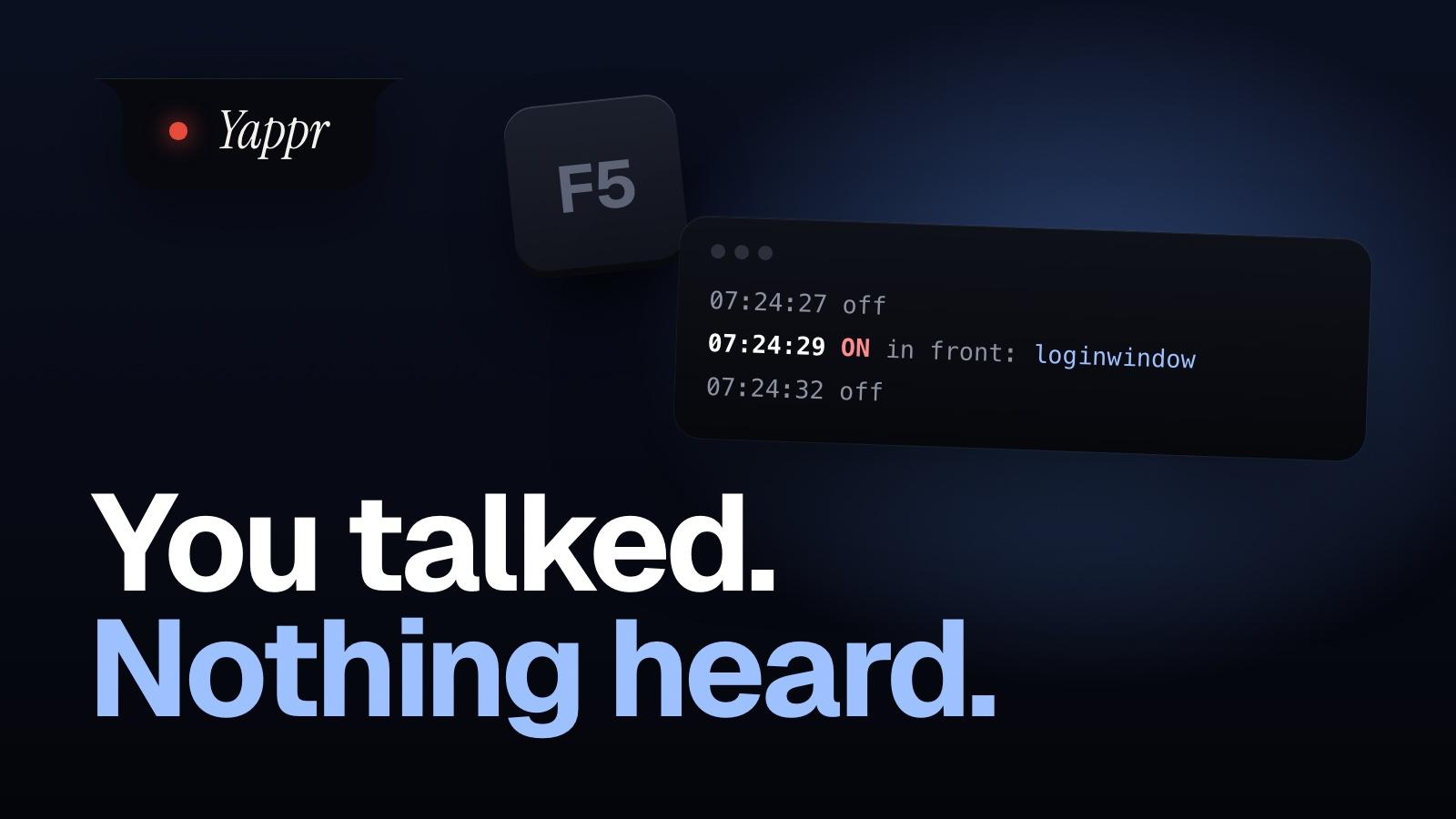
- This is what it printed here, while our test process held Secure Input for three seconds.
Terminal's Secure Keyboard Entry: off (iTerm2: see its iTerm2 menu)
Watching. Leave this open and use your Mac.
07:24:27  off
07:24:29  ON   in front: loginwindow
07:24:32  off
Read the script first (it's 18 lines)
#!/bin/bash
# secure-input-watch.sh: prints a line when macOS Secure Input turns on or off,
# and when the app in front changes while it is on. Reads only. Ctrl+C to stop.
#
# Look at the time, not at a name: in our tests macOS named the app in front,
# not a background app that held it. What did you open just before "ON"?
# From useyappr.com/blog/dictation-hotkey-not-working-mac

front() { lsappinfo info -only name "$(lsappinfo front)" | cut -d'"' -f4; }

echo "Terminal's Secure Keyboard Entry: $( [ "$(defaults read com.apple.Terminal SecureKeyboardEntry 2>/dev/null)" = 1 ] && echo ON || echo off ) (iTerm2: see its iTerm2 menu)"
echo "Watching. Leave this open and use your Mac."
was=start
while :; do
  if ioreg -l -d 1 -w 0 | grep -q -a '"kCGSSessionSecureInputPID"'; then now="ON   in front: $(front)"; else now="off"; fi
  if [ "$now" != "$was" ]; then echo "$(date +%T)  $now"; was=$now; fi
  sleep 0.5
done
Or pick a key it can’t hide
Dictating to Claude Code? Here’s how its own /voice compares. And if it’s the agent waiting unseen, not your key: turn your Mac red when it needs you.
How we measured, and what we didn't test
One MacBook. On 2 November a throwaway process turned Secure Input on, and simulated key presses were sent through the system: the usual way of listening (an event tap) heard Control and not F5, and macOS’s older hot key API heard F1, F5, F12 and F13. One run each, simulated presses, not a finger; Option and Command weren’t tried. The same day, screen unlocked, the holder ran as a background app and as a bare process, and ioreg named the app in front each time (Claude, Chrome, Zoom). On 10 November, macOS 26.6.2 with the screen locked, it named loginwindow every time; with no test running, Secure Input was off.
Not tested: a real key press under Secure Input, a real password manager as the holder, what ioreg says when the app in front is the one holding it (it may well be right then), Ghostty, Warp or VS Code’s terminal, and whether pasting is blocked too. Files: the script and the test process, so you can run the test yourself. Read the same day: Apple’s Terminal guide, iTerm2’s menu docs.
Written 10 November 2026. Every fact about another product is from its own pages, checked that day.